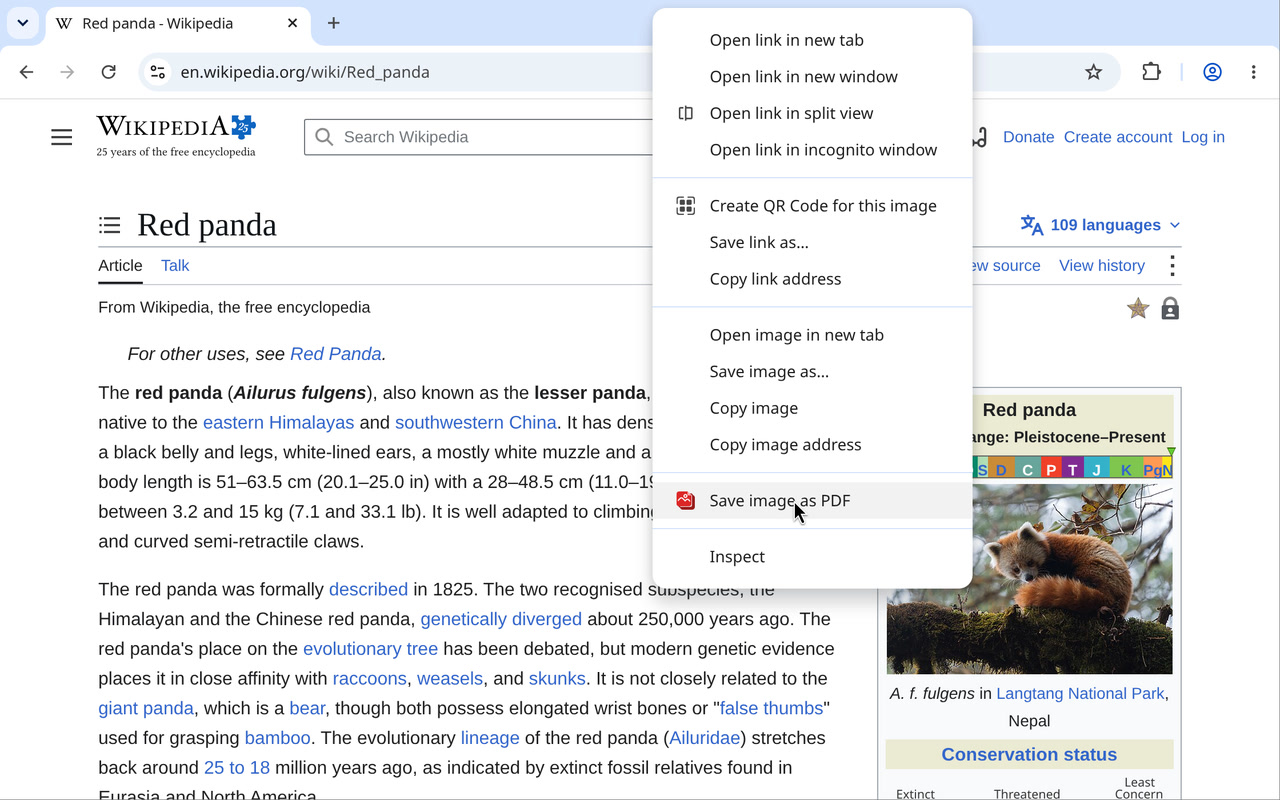
Right-clicking an image to choose Save image as PDF

A Right-Click with a Memory: Why I Store a Counter in a Chrome Menu Item's id

My hobby projects are small Chrome extensions and little single-purpose websites. One of those extensions, PDF to PNG, unexpectedly climbed to first place in Chrome Web Store searches for “pdf to png” (well, most of the time), and nearly 500 people use it - which is amazing! Once PDF to images worked, I immediately wanted to do the reverse - images -> PDF, only better: right-click an image on any page, have an easy(!) way to adjust the settings, and do everything locally in the browser without uploading the images anywhere! I put all those lovely settings in the side panel. Except a regular user might never think to open it, and I did want them to know it was there, without pestering people who were happy with the right-click menu. So I’d show it sometimes (or until the user actually clicked something in the panel). Then I ran into a Chrome rule: you can only open the panel in response to a click, which, in a menu item click handler, means before the first await. And to show it sometimes, the extension needs to remember on each click how many times it has already shown it - but reading that from storage takes an await. The solution - store the counter right in the context menu item’s id! :) And here it is - Save Image as PDF. Right-click - and your image is already a PDF. Your browser does not support the video tag. ...

Post · October 27, 2026 · 7 min · Artem Marchenko
Tab Saver - saved sessions with tabs

I Got Tired of Losing Dozens of Tabs and Built Tab Saver: Backing Up Tabs to Google Account with Zero Signups

I constantly have multiple Chrome windows open, each with a pile of tabs. One window has a dozen slow analytics queries that I’ll check “any minute now.” Another has my research on $lookup and $unwind in MongoDB. The third one — with the most tabs — has St. Petersburg school enrollment rules, because life. Of course, a more urgent task comes up, and the old windows get closed… only for me to resume researching the same topics a week later, unable to remember where I left off. Tab-saving extensions have existed for ages, but reviews regularly complain about data loss — so why not build my own, designed specifically for backup? Every Chrome user already has a Google account, usually with sync enabled. What if I just saved tabs there — no signups, no servers, no subscriptions? Your browser does not support the video tag. The result is Tab Saver. One click — all tabs saved and backed up to your Google account. ...

Post · February 5, 2026 · 4 min · Artem Marchenko
Google Meet Reactions - fast emoji search

Google Meet Reactions: Reverse Engineering the WebRTC Channel for Emoji

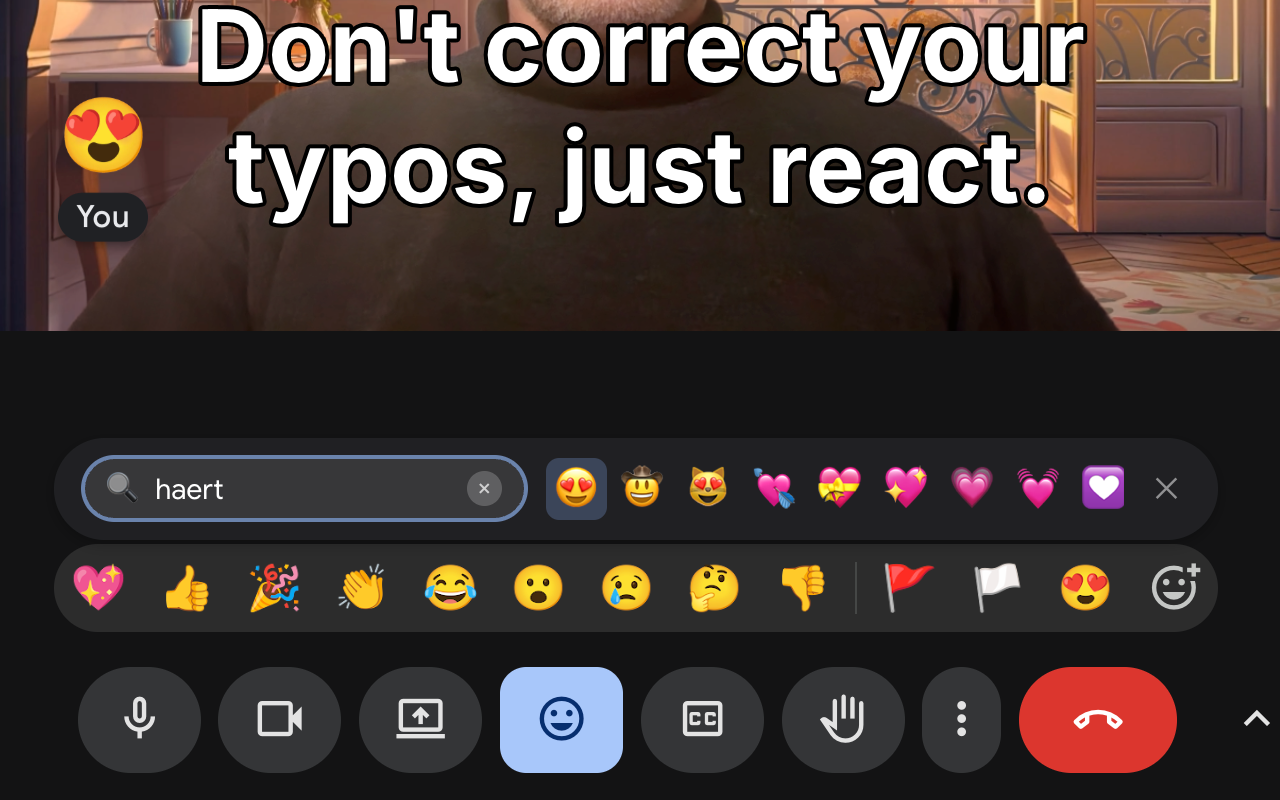
I spend a lot of time in Google Meet — sometimes 3-4 hours a day. Google recently added a ton of new emoji reactions, and we use them actively. But the UX for finding them is… not great. Colleagues keep sending cool new emoji, and I struggle to find that exact one they just used. Of course, an enthusiastic programmer can break improve any UX! The result is Google Meet Reactions, an extension that adds instant search right into Meet’s interface. Most importantly for me — it remembers which emoji I use and which ones my colleagues send, and boosts them in search results. Your browser does not support the video tag. ...

Post · January 19, 2026 · 5 min · Artem Marchenko
Google Meet Reactions extension in action

Reaction Latency: Why I fixed Google Meet's Emoji Bar

I use emoji reactions in Google Meet a lot, but I have a problem with its emoji picker: it is too slow for conversation. When someone drops a bombshell in a meeting, you have about 2 seconds to react. That is the “social window.” If you drop a 🤯 emoji 10 seconds later, it’s awkward. The native Google Meet picker is not built for speed or even convenience. You open it, scan 9 standard emojis, click “More”, and scroll… by the time you find 🚀, the topic has changed. I built Google Meet Reactions to fix this. I wanted the speed of “Type to react” (like Slack), but smarter - it should remember frequently used images and let me search by rough description. And so it does. Try it out: Install from Chrome Web Store: Google Meet Reactions Website: googlemeetreactions.com Project Page: Google Meet Reactions ...

Post · January 12, 2026 · 3 min · Artem Marchenko
Chrome extension installs doubled after getting Featured badge

How to get your Chrome Web Store extension featured and double your installs (by just asking nicely)

I got my Highlighter Extension a Featured badge by doing something surprisingly simple: I just asked for it. The result? My daily installs roughly doubled. It took about 2–3 days (people report anything from a few days to a month). ...

Post · December 13, 2025 · 2 min · Artem Marchenko

The Cmd‑F for many terms at once, built for tough dynamic pages

I have just created a Chrome extension that replaces Cmd‑F when you need to search for many terms at once. Think “ERROR”/“WARNING” or “JavaScript”/“Machine Learning”/“AI”. It is fast. Really fast. Faster than any similar extension I know. CSS Custom Highlights = no injected wrappers, no jank. (Curious about alternatives? See one and another.) Keyboard‑friendly. Open Ctrl+Shift+F, Next Ctrl+Shift+H, Prev Ctrl+Shift+K (rebindable). Finds hard‑to‑spot matches when asked. Hidden items show up in the list (e.g., a term inside a collapsed section); one click reveals and glows. Hidden is off by default. Try it now: Install from Chrome Web Store: Highlighter — Better than Cmd‑F A bit more details on the welcome site: highlighterextension.com Project page: Highlighter Extension ...

Post · October 13, 2025 · 3 min · Artem Marchenko