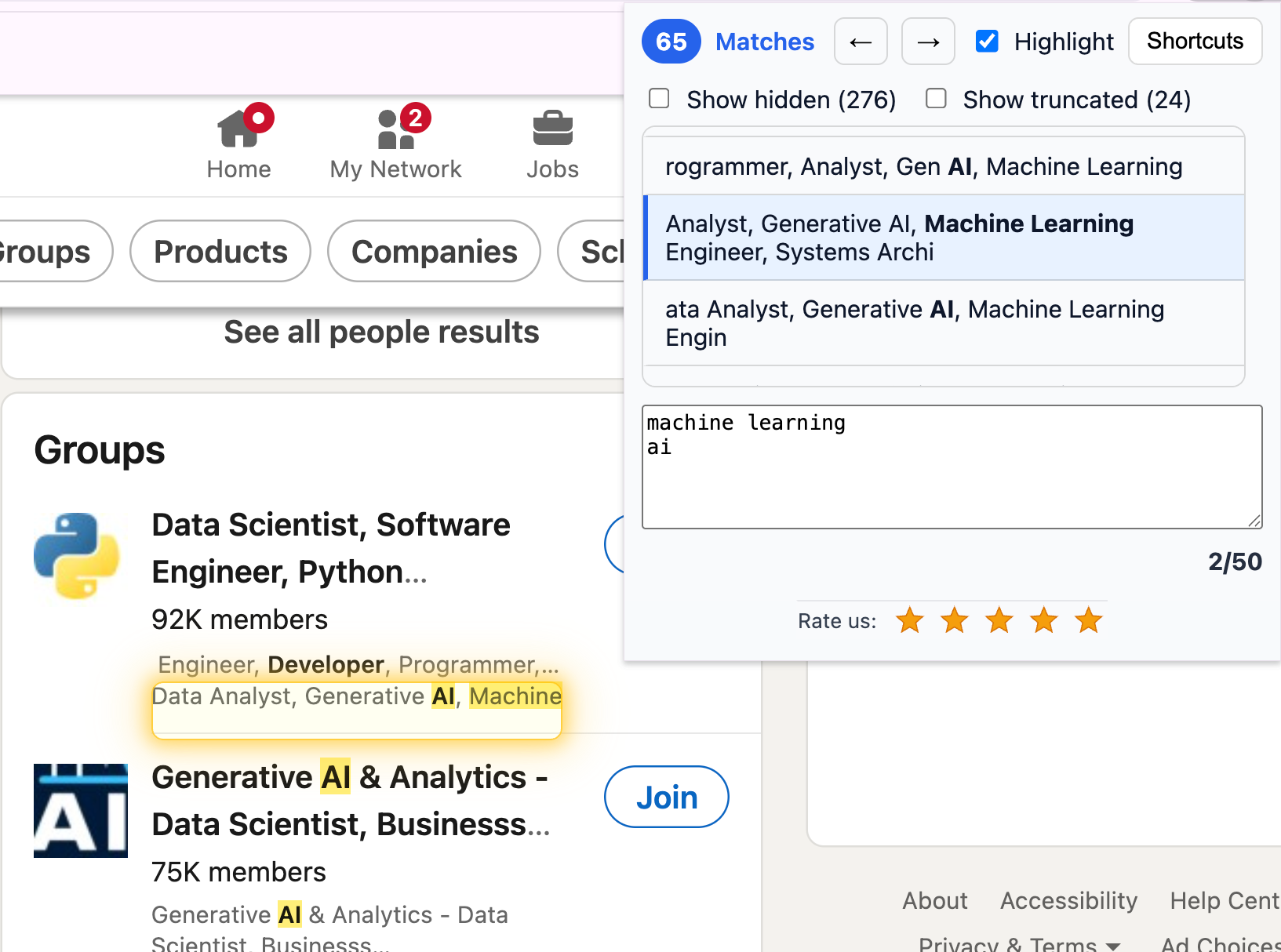
I have just created a Chrome extension that replaces Cmd‑F when you need to search for many terms at once. Think “ERROR”/“WARNING” or “JavaScript”/“Machine Learning”/“AI”.
It is fast. Really fast. Faster than any similar extension I know. CSS Custom Highlights = no injected wrappers, no jank. (Curious about alternatives? See one and another.)
Keyboard‑friendly. Open Ctrl+Shift+F, Next Ctrl+Shift+H, Prev Ctrl+Shift+K (rebindable).
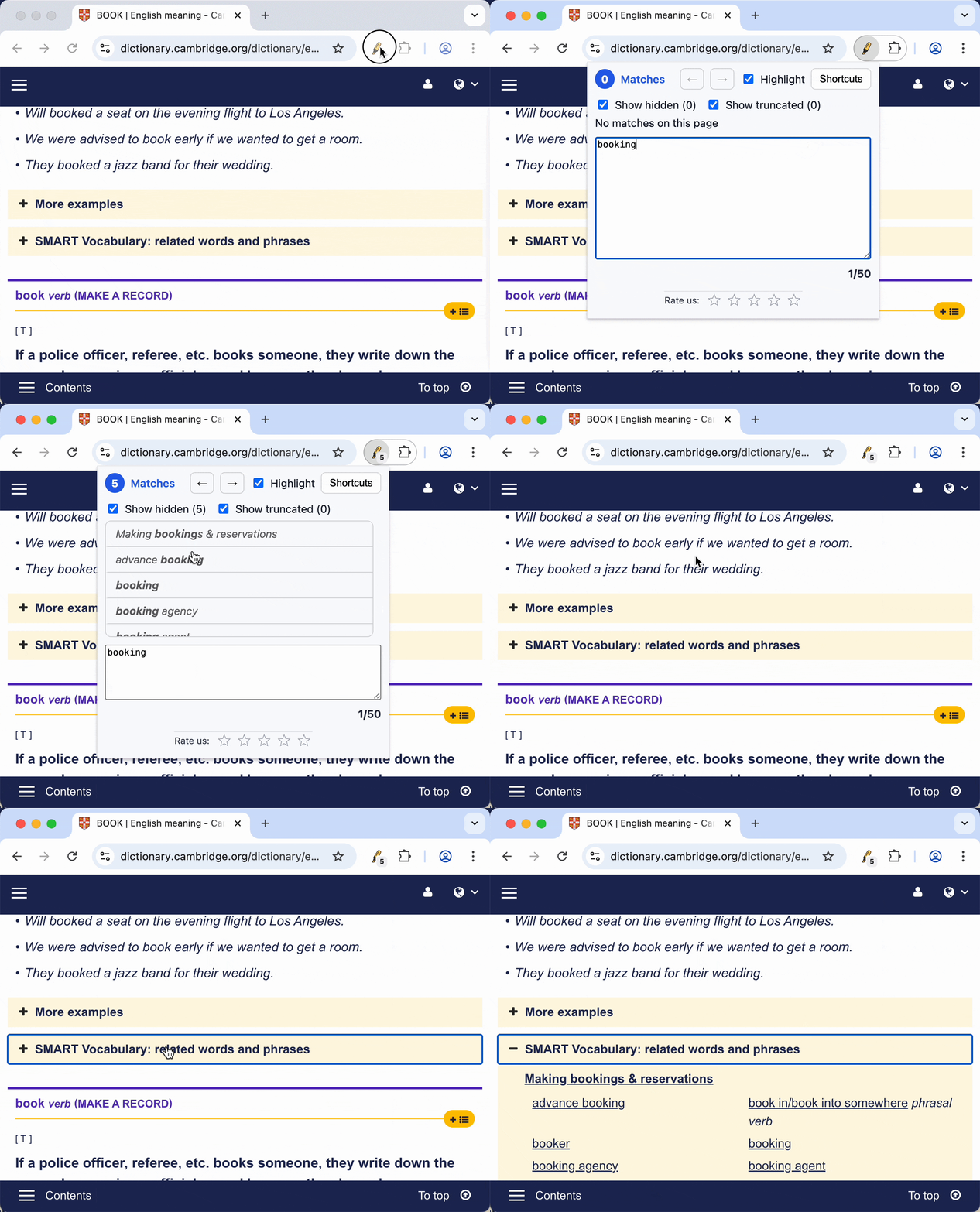
Finds hard‑to‑spot matches when asked. Hidden items show up in the list (e.g., a term inside a collapsed section); one click reveals and glows. Hidden is off by default.
Try it now:
- Install from Chrome Web Store: Highlighter — Better than Cmd‑F
- A bit more details on the welcome site: highlighterextension.com
Who this is for (and what hurts today)
- Recruiters: comparing skills across job ads and resumes.
- Researchers and students: jumping through docs where inline markup and multi‑column layouts defeat standard find.
- Professionals who live in long pages and dashboards — if the UI gets fancy, Cmd‑F gets shaky.
- OSINT researchers who need to analyze lots of pages quickly (profiles, reports).
Common pain points with Cmd‑F on modern web UIs:
- Hidden or collapsed content: menus, accordions, tabs, sidebars.
- Nested scroll containers: wide tables, panes, and code blocks that require horizontal and vertical reveal.
- Iframes/subframes: content in embedded documents that the browser find skips or mishandles.
- Dynamic pages: JavaScript rewrites content constantly; many matchers fail to keep up. This one does.
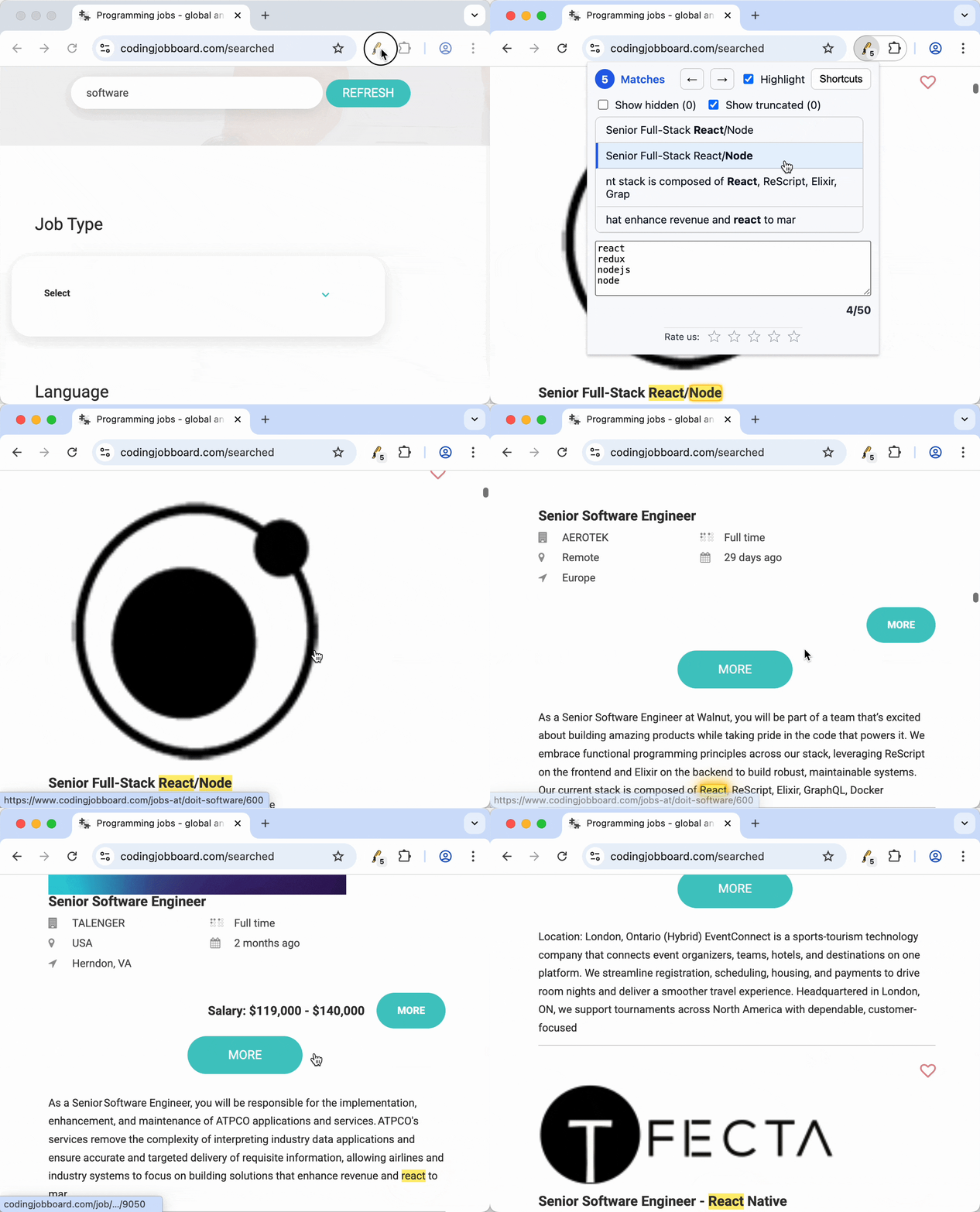
Design choices that keep it snappy (and polite)
- CSS Custom Highlights, not wrappers: no injected
<span>s or<em>s, no layout shifts, low overhead even onbighuge pages. - Keyboard you already know:
J/Kfor next/prev, quick open chord, compact popup list. Rebind inchrome://extensions/shortcuts. - Reveal‑and‑glow: find → reveal inside scroll containers → center → a brief glow so your eye lands instantly.
- Cross‑frame assist: matches inside iframes are revealed and glowed from the top page; you won’t lose terms in embedded pages.
- Hidden by choice: hidden items show up in the list but stay visually quiet until you ask. Toggle “Show hidden” when you need them.
- Privacy‑first: everything runs locally.
Keyboard cheat‑sheet
- Open:
Ctrl+Shift+F - Next:
Ctrl+Shift+K - Prev:
Ctrl+Shift+H
You can change these in Chrome at chrome://extensions/shortcuts.
[Hopeful] Roadmap
- Multiple colour‑coded lists and per‑list toggles.
- Support Whole‑word and case‑sensitive matching
- More language‑aware matching (Unicode word boundaries).
- Cross‑browser support.
Show me your toughest pages (please)
Again: I want this to work beautifully on the pages where other highlighters give up — gnarly dashboards, infinite scrolls, editors, heavy iframes (LinkedIn‑style pages too). Send me links in the Chrome Web Store reviews. If your friends have brutal pages, send those as well. I’ll add targeted tests and ship fixes.
Bonus features
The extension icon shows a badge with the match count, so when you open multiple tabs you can see at a glance which ones have hits.
It’s already very reliable on tough dynamic pages (think LinkedIn‑style UIs, dashboards, nested scrolls, heavy iframes, multi‑megabyte log pages). If you know a page where highlighters struggle, drop a link in the comments or in the Chrome Web Store reviews. I’ll add a targeted test and make it work.